HOW_IT_WORKS
Everything you need to understand EduTrack — from core concepts to deep feature breakdowns, user workflows, and the logic that powers Zambian school management.
Glossary of Terms
> Learn the language of EduTrack before diving into features.
Core Entities
Academic Terms
System Terms
Government Terms
Getting Started
> From registration to your first report card in 6 steps.
School Registration
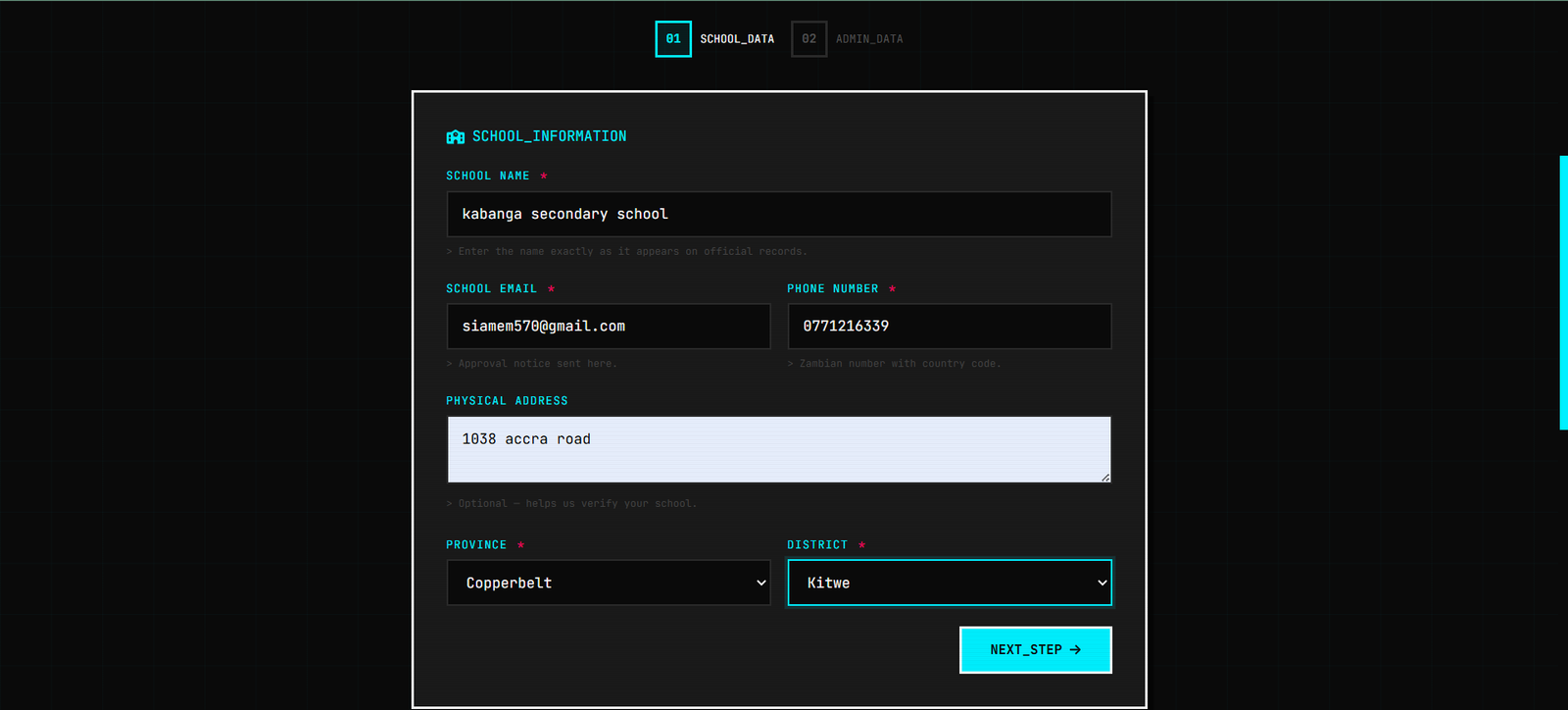
Visit the registration page and fill in your school details: name, email, phone, physical address, province, and district. Select your curriculum mode (Legacy, ZECF 2023, Transitional, or Cambridge).
Create Admin Account
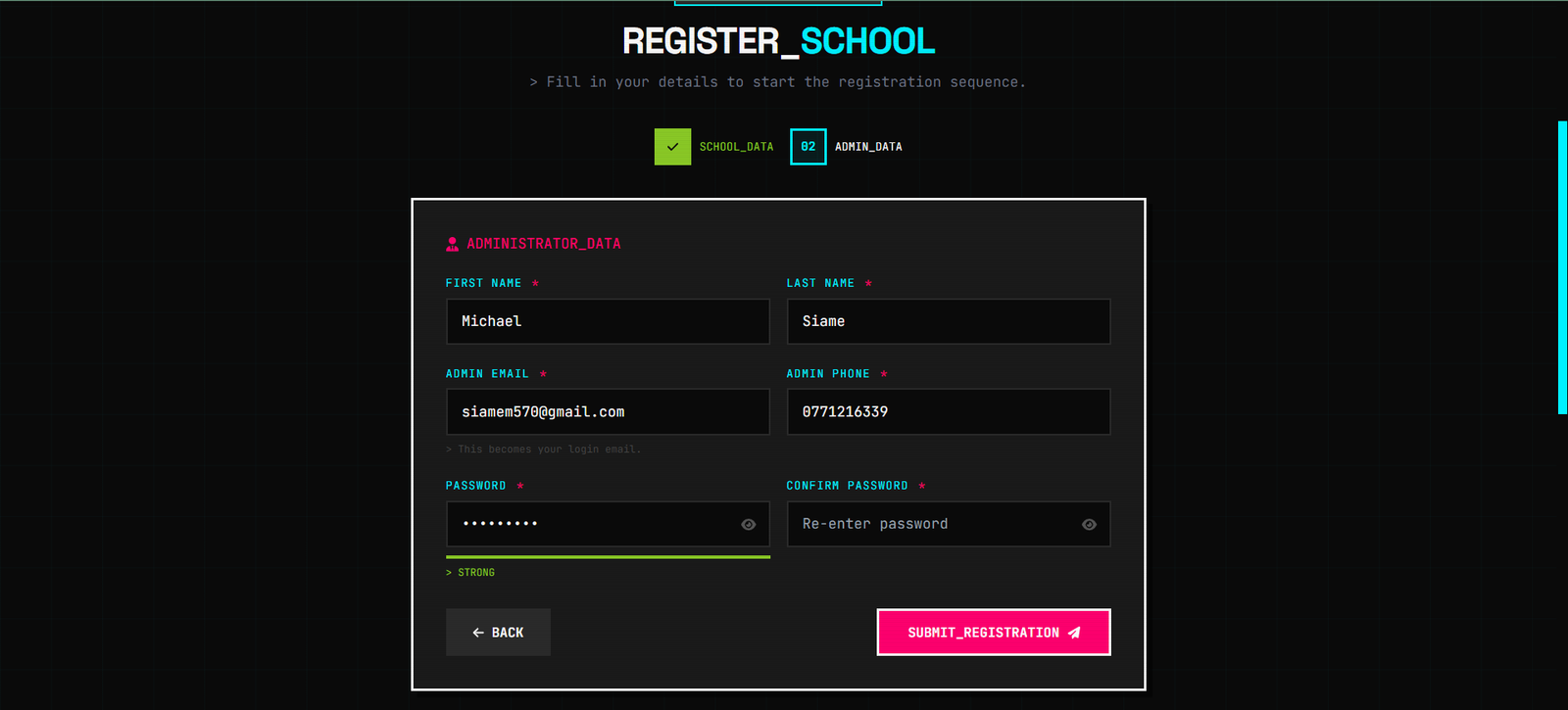
Provide the school administrator's name, email, phone, and a secure password. This person becomes the primary admin with full school-level access.
System Admin Approval
Your registration is reviewed by the EduTrack system admin (typically 24–48 hours). Once approved, you receive an email with a link to set your password and activate the account. Your school gets 50 free SMS credits and a 14-day free trial.
Initial Setup
Log in and configure your school:
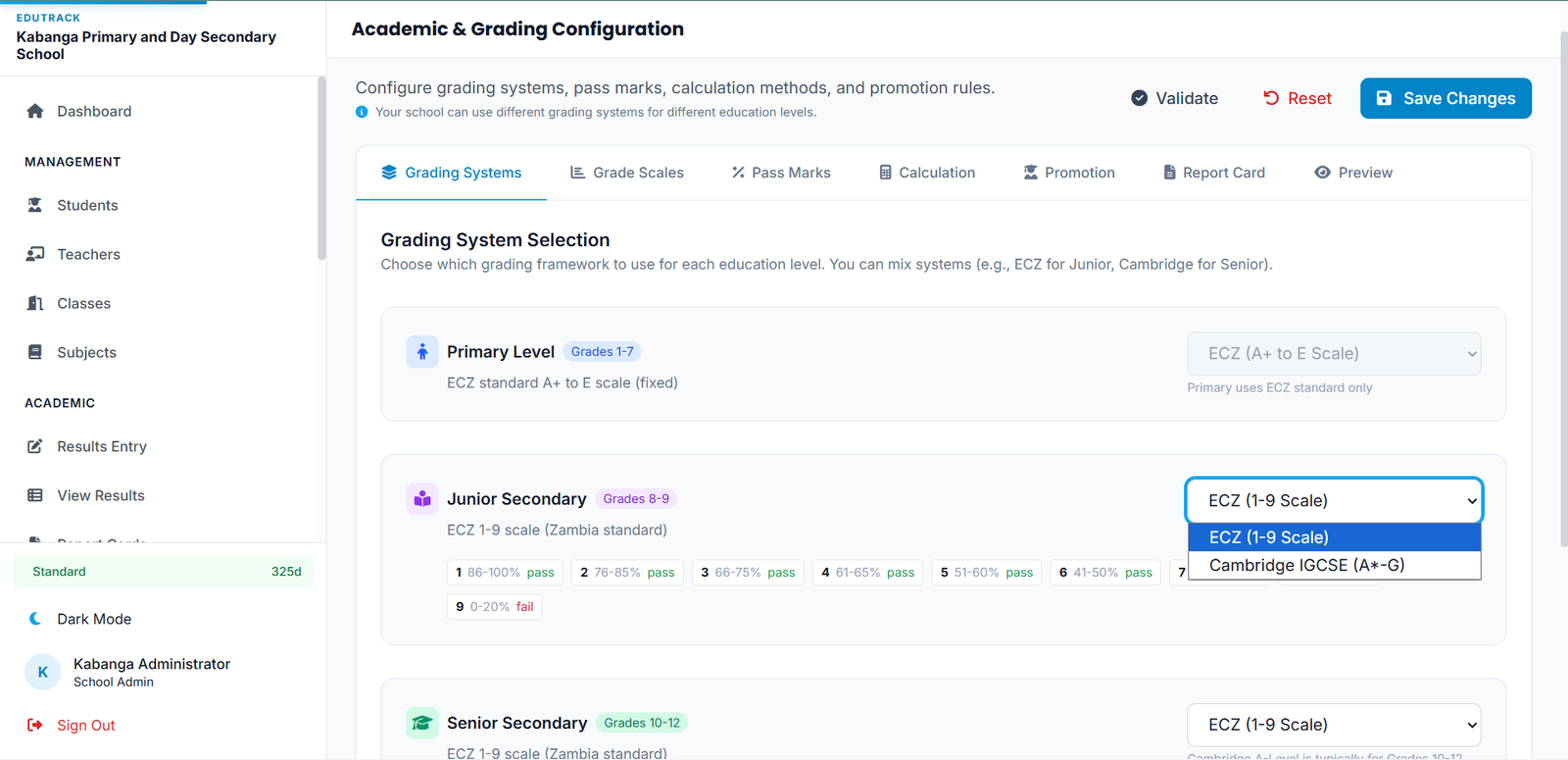
- Go to Settings and confirm your curriculum mode
- Create Classes (Grade 1A, Grade 1B, etc.)
- Create Subjects (Mathematics, English, etc.)
- Assign Subjects to Classes and set teachers
- Create the current Academic Term and mark it active
Add Students & Teachers
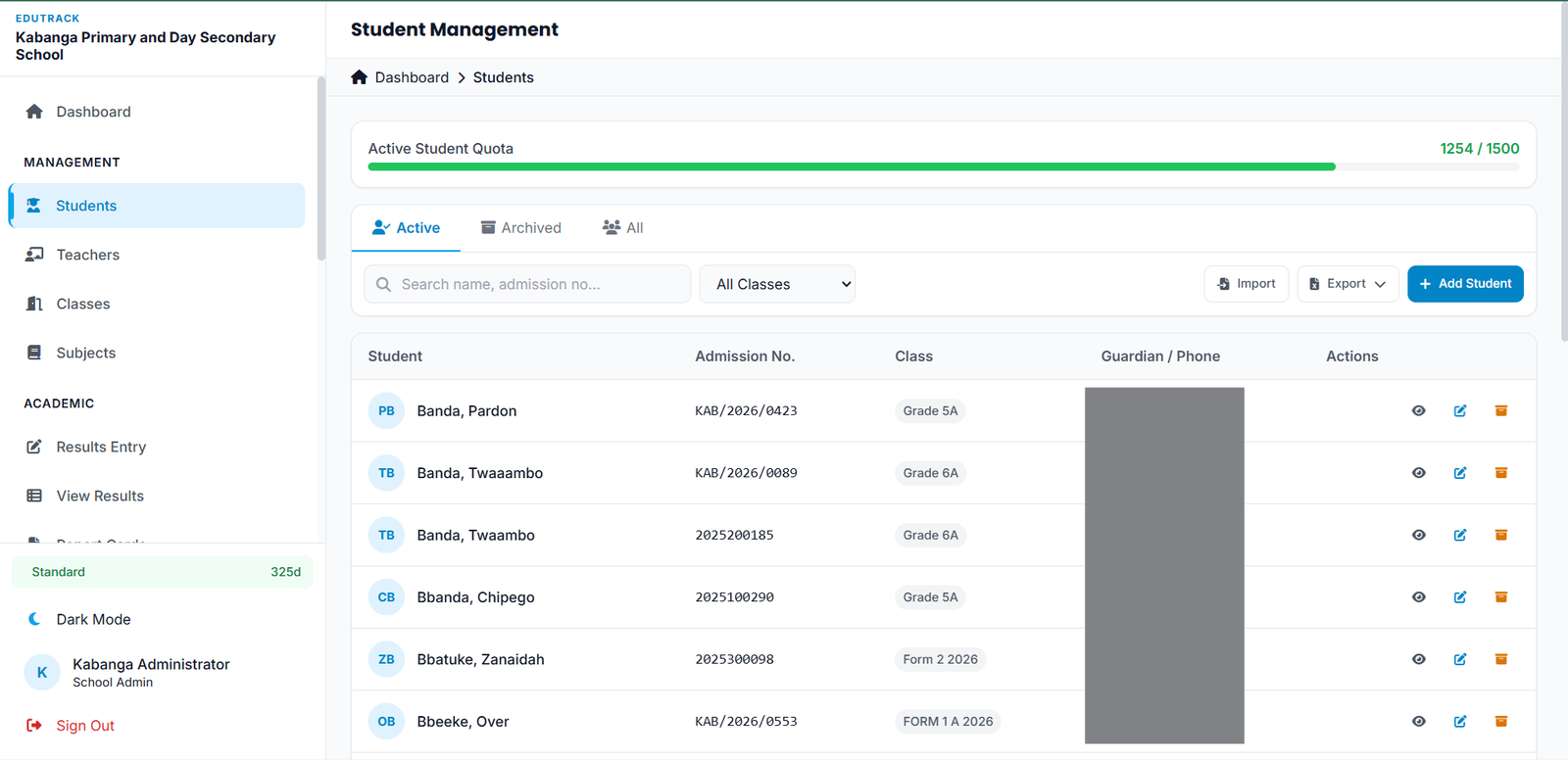
Add students individually or bulk-import via Excel. Each student needs: admission number, full name, date of birth, gender, class assignment, and parent/guardian phone (for SMS). Add teachers and assign them to their subjects.
Enter Results & Generate Reports
Teachers enter marks for their assigned subjects. The system automatically computes grades, averages, positions, and generates report cards. Admins can print or email report cards to parents.
Core Modules
> Deep dives into every major feature. Click a section to expand.
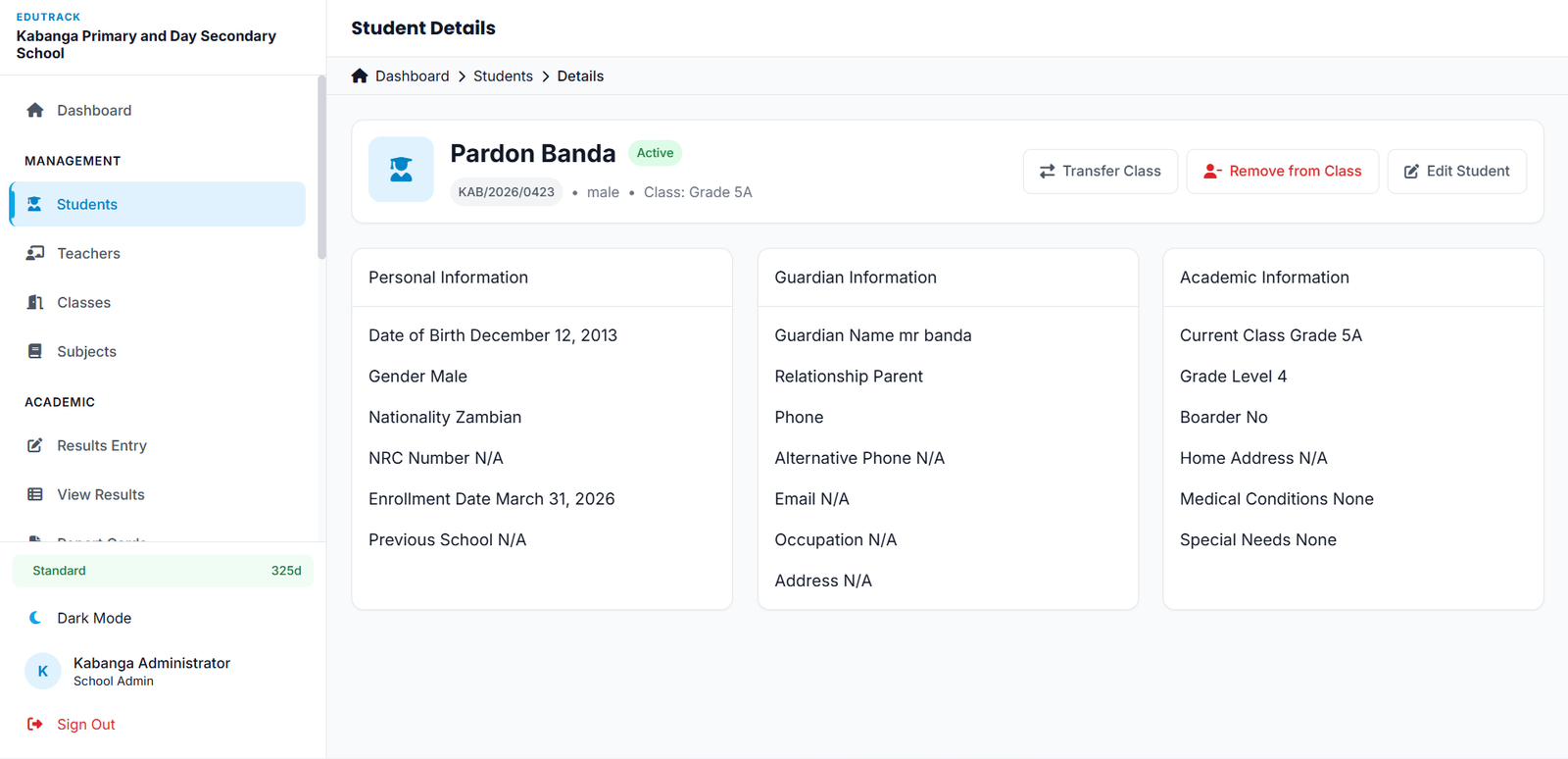
Students are the core of EduTrack. Each student record contains:
- Admission Number — Unique within the school, used for parent portal lookups
- Personal Info — Name, DOB, gender, NRC (optional), photo (optional)
- Class Assignment — Current class and academic history
- Guardian Info — Parent/guardian name and phone number (required for SMS)
- Status — Active, graduated, withdrawn, or transferred
Bulk Import: Download the Excel template, fill in student data, and upload. The system validates phone numbers, checks for duplicate admission numbers, and creates all records in one operation.
Soft Delete: "Deleting" a student hides them from daily views but preserves their academic history. Useful when a student transfers out but you need to keep their records for reporting.
Teachers are system users with the teacher role. Unlike generic users, teachers are also linked to the teachers table which stores their employment details.
Subject Assignment: A teacher is assigned to subjects through class_subjects. A teacher can teach Mathematics to Grade 7A and Grade 7B, but only sees those classes when entering results.
Permissions:
- View all students in assigned classes
- Enter results only for assigned subjects
- Mark attendance for assigned classes
- Cannot: delete students, manage users, change settings, view financial data
My Classes / My Subjects: Teachers have dedicated endpoints that show only their workload, keeping the interface focused.
Classes represent physical classrooms. A class has:
- Name (e.g., "7A", "Form 3B")
- Grade Level (1–12, or 1–6 + Forms 1–6 for ZECF)
- Education Level (Primary, Junior Secondary, Senior Secondary)
- Optional display_label override (e.g., show "Form 1A" instead of "Grade 8A")
Subjects are academic disciplines. Each subject has:
- Name and code (e.g., MAT, ENG)
- Education Level it belongs to
- is_examinable flag — non-examinable subjects (like Computer Studies under ZECF) don't count toward averages
Class Subjects is the junction table linking a class to a subject with a teacher. This is where you say "Mr. Banda teaches Mathematics to Grade 7A."
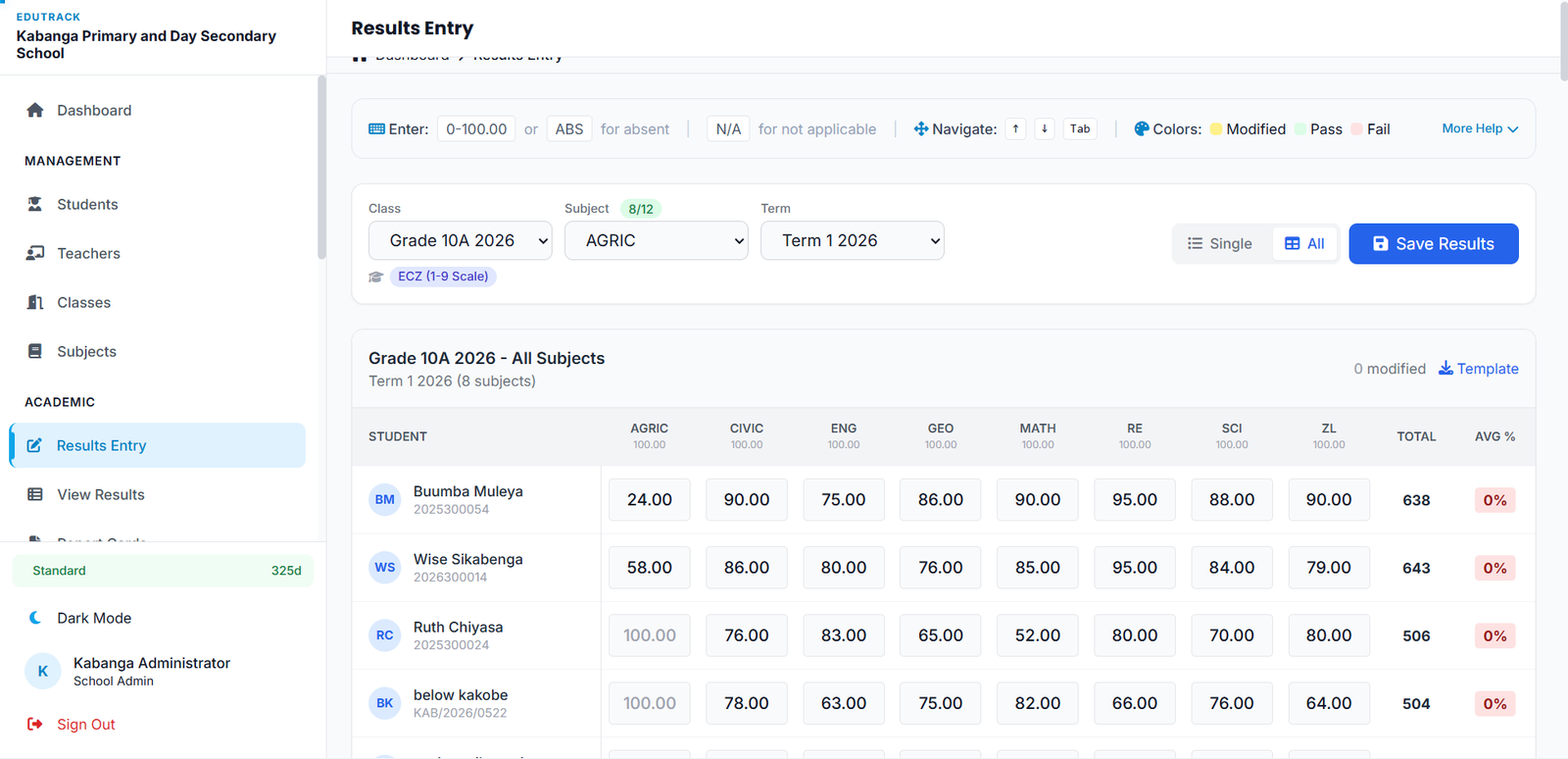
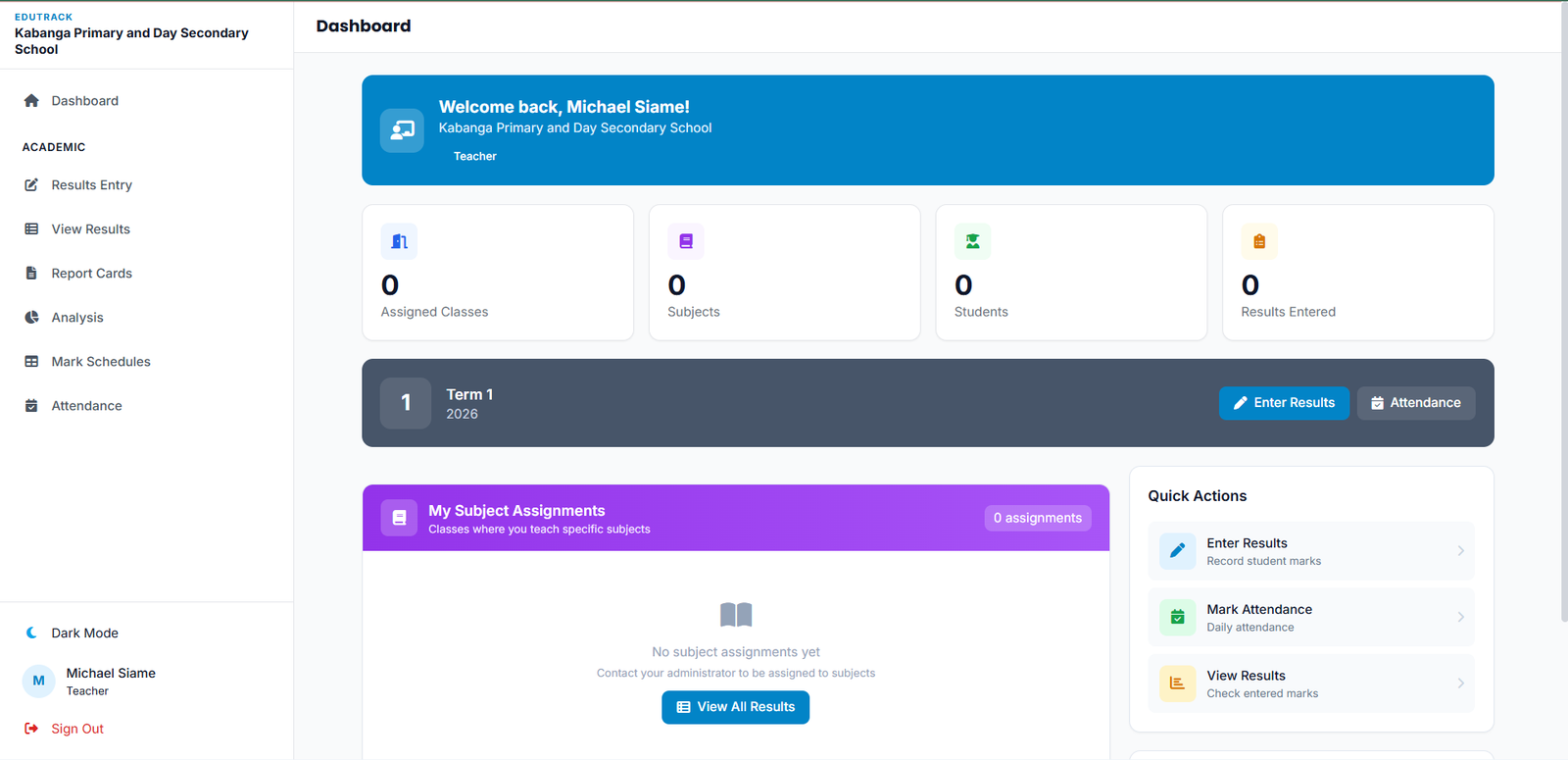
Results are entered at the class × subject × term level. A teacher sees a grid of all students in their assigned class, enters marks, and saves.
MARK TYPES
- Exam Score — The final examination mark (0–100)
- SBA Score — School-Based Assessment mark (0–100). Under ZECF, this counts for 30%
- SBA Weight — How much SBA contributes (default 0.30 for ZECF, 0.00 for legacy)
> FORMULA: final = sba_score × sba_weight + exam_score × (1 − sba_weight)
GRADE CONVERSION
The system looks at the school's Education Level and Curriculum Mode to pick the correct grading scale:
- Primary (Grades 1–7) — Letter grades: A+, A, B+, B, C+, C, D+, D, E
- Junior Secondary (Grades 8–9 / Forms 1–2) — ECZ numerical: 1–9
- Senior Secondary (Grades 10–12 / Forms 3–5) — ECZ with points for university entry
BULK ENTRY
Teachers can enter marks for all students in a class at once via a spreadsheet-like grid. Tab moves to the next cell. Enter saves the row. This is significantly faster than per-student entry.
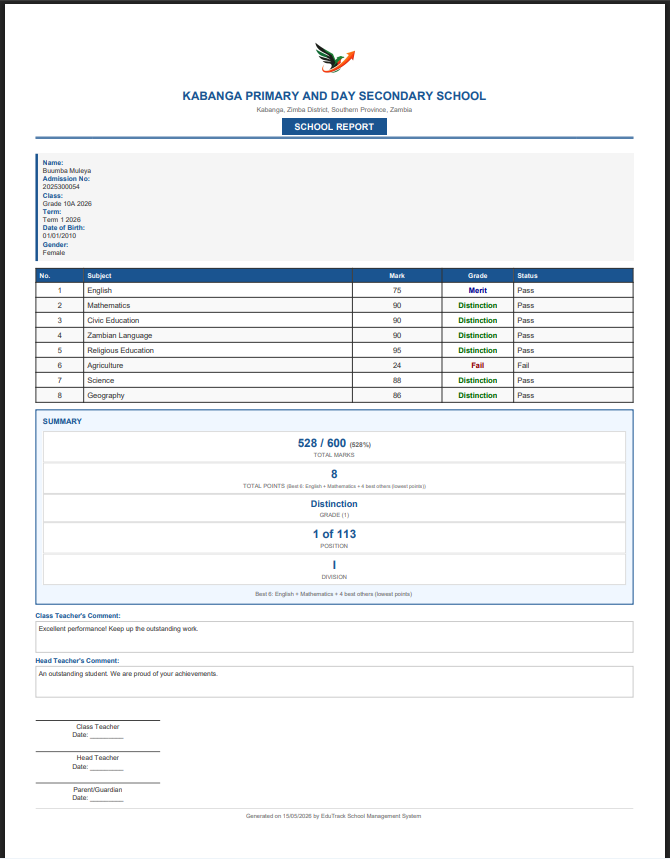
Report cards are generated automatically from results and term summaries. The system supports:
- Primary Report Cards — Letter grades, teacher comments, attendance summary
- Secondary Report Cards — ECZ numerical grades, points, division calculation
- Bulk Generation — Generate PDFs for an entire class in one click
- Parent SMS — Send compact results via SMS (under 160 chars)
Comment Banks: Teachers can save reusable comments ("Excellent work, keep it up!", "Needs more effort in homework.") and insert them with one click.
Paper Sources: For schools that print report cards on pre-printed stationery, you can configure paper source offsets so the PDF aligns perfectly with your template.
Teachers mark daily attendance for their assigned classes. Each student is marked as:
- Present — Student attended
- Absent — Student did not attend
- Late — Student arrived after roll call
- Excused — Absence with valid reason (sick note, etc.)
Bulk Attendance: Mark an entire class present with one click, then only change the exceptions (absent/late). This takes under a minute for a class of 50.
Absence Alerts: While attendance templates exist in the SMS Template system, absence alerts are not sent automatically. Admins can send them manually from the SMS Center if needed.
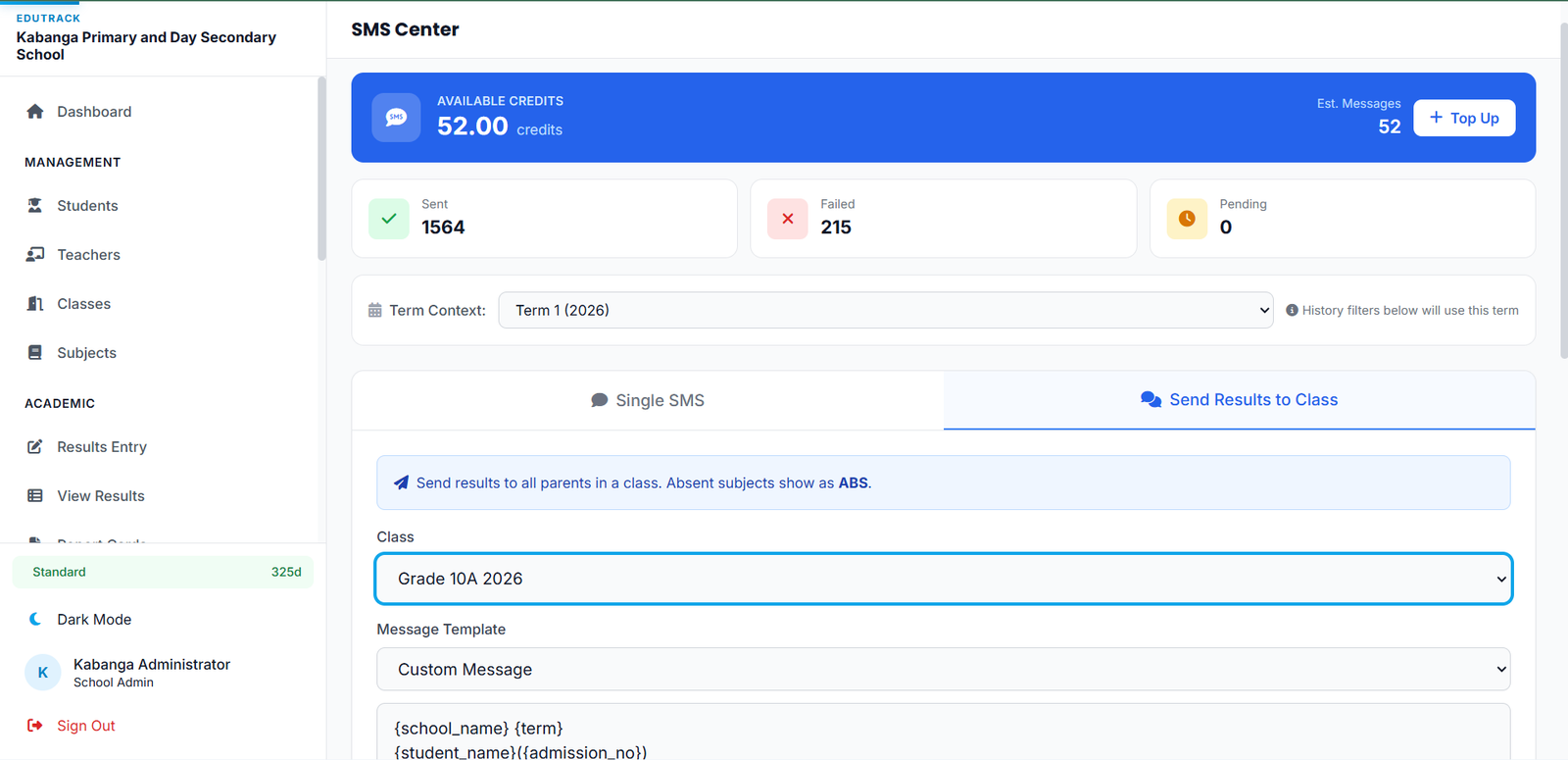
EduTrack integrates with the Zamtel Bulk SMS API to send messages to parents. Messages are sent manually by admins from the SMS Center:
- Single SMS — To one parent or any phone number, with optional template
- Results to Parents — Compact results or custom templates per class
- Class Announcements — Fee reminders, events, or custom messages to a class
Attendance alerts and fee reminders are not sent automatically — they must be sent manually from the SMS Center.
SMS TEMPLATES
Templates use variables like {student_name}, {average}, {position}, {term} that are replaced at send time. The system comes with 19 default templates covering results, attendance, announcements, and welcome messages. Schools can create their own templates with custom variables.
SMS CREDITS
Schools purchase credits via mobile money (Lenco integration). One credit sends one SMS message. Messages up to 160 characters fit in a single SMS; longer messages may be concatenated by the carrier. Schools can check their balance in real time.
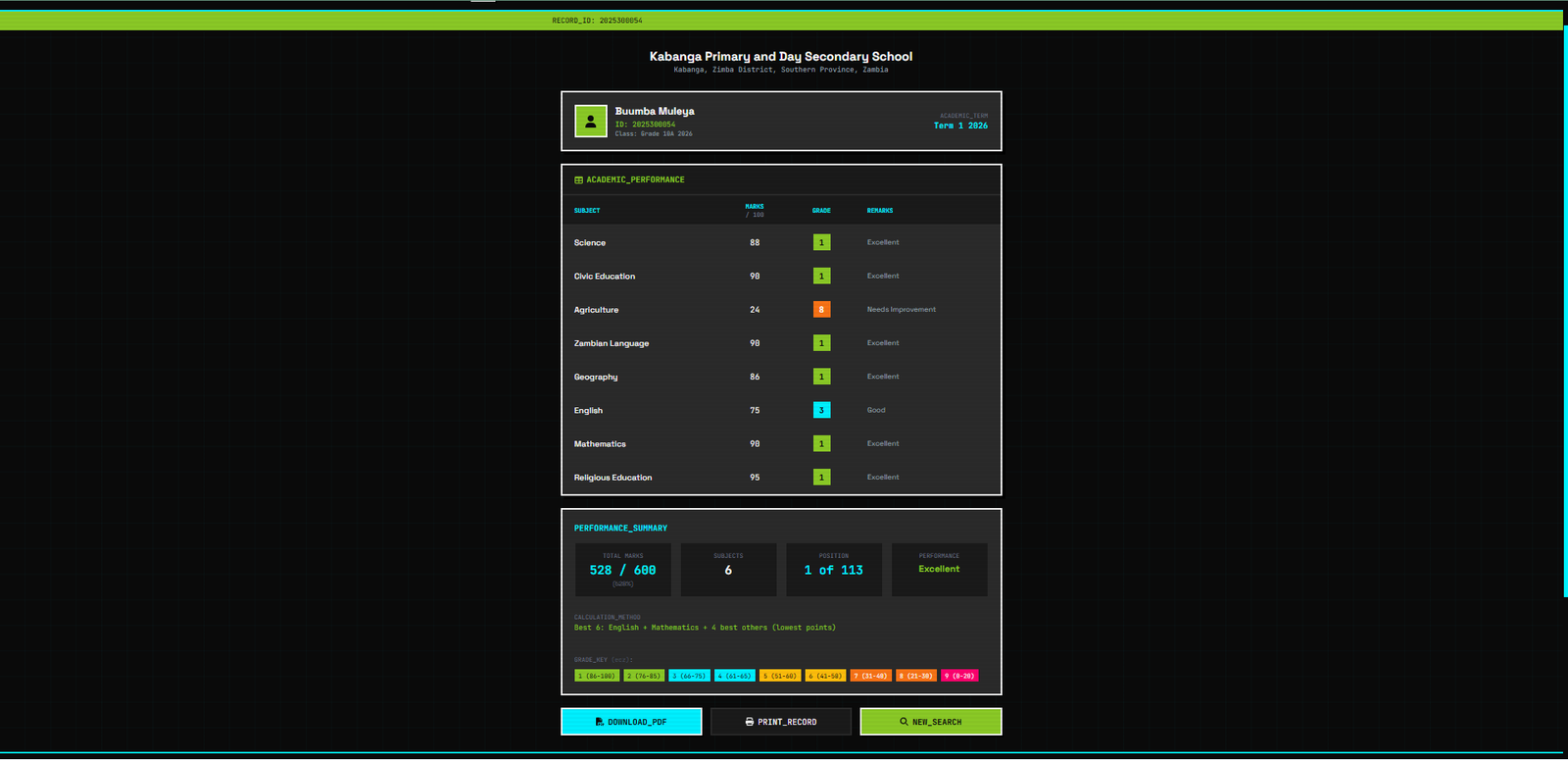
Parents don't need to log in. They use the public results lookup at /check-results:
- Enter the student's Admission Number
- Select the Academic Term from the dropdown
- View the report card instantly
This is deliberately simple — no passwords to forget, no accounts to manage. As long as the parent knows their child's admission number, they can check results from any device.
Schools can also print QR codes on physical report cards that link directly to the digital version.
EduTrack uses Lenco for mobile money payments (MTN, Airtel, Zamtel). Schools can:
- Purchase SMS credits on demand
- Pay for subscription plans (monthly/annual)
- Receive quotations for custom packages
How it works: The school selects a package, enters their mobile money number, and approves the prompt on their phone. The payment is confirmed via webhook and credits are added instantly.
Subscription Plans: Plans limit the number of students, teachers, and SMS messages. Schools can upgrade or downgrade at any time. Prorated billing applies.
Government officers access read-only dashboards showing aggregated school data. There are three levels:
DEBS DASHBOARD
View all schools in the district. Metrics include:
- Total schools, students, teachers
- Average pass rates by subject
- Schools with pending registrations
- SMS activity and engagement rates
PROVINCIAL DASHBOARD
View all districts in the province. Compare district performance side-by-side. See trends over time (enrollment, pass rates, dropout rates).
NATIONAL DASHBOARD
Full country view. Provincial comparisons, national averages, curriculum adoption rates (Legacy vs ZECF 2023), and gender-disaggregated statistics.
All dashboard data is anonymized and aggregated. Individual student names and marks are never visible to government officers.
Government dashboard screenshots available on request for verified education officers.
The Settings page lets admins configure:
- School Profile — Name, motto, logo, contact details, sender ID
- Curriculum Mode — Legacy / ZECF 2023 / Transitional / Cambridge
- Grading Configuration — Custom grade boundaries, pass marks, distinction thresholds
- Paper Sources — Offsets for printing report cards on pre-printed templates
- User Management — Create teachers, viewers, and other admins. Reset passwords. Deactivate accounts.
School Result Settings allow per-school customization of grade boundaries. If your school uses slightly different thresholds than the national standard, you can override them here.
Every action in EduTrack is logged. The audit trail captures:
- Who performed the action (user ID and name)
- What was changed (before/after values for updates)
- When it happened (timestamp)
- Where it happened (IP address and user agent)
Result Histories: When a teacher changes a student's mark, the old value is preserved in result_histories. Admins can see exactly who changed what mark and when.
Role Hierarchy: Admins can do everything teachers can, plus manage users and settings. Viewers can only read data. The system enforces these boundaries at the middleware level.
Use Cases by Role
> What does each user type actually do in EduTrack? Pick your role to find out.
School Administrator
Daily Tasks
- Approve teacher-submitted results
- Generate and print report cards
- Send SMS to parents (results, announcements, fee reminders)
- Monitor attendance trends
- Manage student admissions and withdrawals
Setup Tasks
- Create academic terms and set active term
- Add classes and assign subjects
- Hire/enroll teachers and assign their subjects
- Import students from Excel
- Configure grading scales and paper sources
- Purchase SMS credits and manage subscription
Teacher
Daily Tasks
- Mark attendance for assigned classes
- Enter exam and SBA marks for assigned subjects
- Write comments on student report cards
- View class performance summaries
Workflow
- Log in and go to "My Classes"
- Select a class and subject
- Enter marks in the bulk grid
- Save — marks are computed and summarized automatically
- Admins review and generate report cards
Parent / Guardian
Parents do not log into EduTrack. They interact with the system in two ways:
- Results Lookup — Visit
/check-results, enter admission number, select term, view report card - SMS Alerts — Receive results SMS when the school admin sends them manually from the SMS Center
No app to install. No password to remember. Works on any phone with a browser.
DEBS Officer
District-level oversight. The DEBS officer can:
- View all registered schools in their district
- See enrollment numbers by grade and gender
- Compare school performance (pass rates, averages)
- Identify underperforming schools or subjects
- Track curriculum adoption (Legacy vs ZECF 2023)
- Monitor teacher-to-student ratios
Data is read-only and aggregated. No individual student identities are exposed.
Provincial Officer
Provincial-level oversight across all districts in the province:
- View district-level aggregate dashboards
- Compare districts on key metrics (enrollment, pass rate, dropout)
- Track trends over multiple academic years
- Download reports for ministry submissions
- Identify districts needing support or intervention
Ministry Officer
National-level policy and planning:
- View all provincial dashboards
- National enrollment and performance statistics
- Curriculum transition tracking ( Legacy → ZECF 2023 )
- Gender parity indices by province and district
- Resource allocation insights (teacher shortages, overcrowding)
- Export national datasets for policy analysis
Grading & Curriculum
> How marks become grades, and how the ZECF 2023 transition works.
Curriculum Modes
Every school in EduTrack operates under one of four curriculum modes. This affects grade labels, report card formatting, and which grading scale applies.
| Mode | Structure | Grades Display |
|---|---|---|
| Legacy | Grades 1–12 | Grade 1, Grade 2, … Grade 12 |
| ZECF 2023 | 3-6-4-2 (Grades 1–6, Forms 1–6) | Grade 1–6, Form 1–6 |
| Transitional | Mixed — phasing in ZECF | Configurable per class |
| Cambridge | IGCSE / A-Level | Year 7–11, Lower 6, Upper 6 |
Important: Internally, EduTrack always stores numeric grade levels (1–13). The display label changes based on curriculum mode. Schools can also override individual class names via the display_label field.
Grading Scales
PRIMARY — Letter Grades
| Grade | Range | Descriptor |
|---|---|---|
| A+ | 90–100 | Excellent |
| A | 80–89 | Very Good |
| B+ | 70–79 | Good |
| B | 65–69 | Above Average |
| C+ | 60–64 | Average |
| C | 55–59 | Satisfactory |
| D+ | 50–54 | Pass |
| D | 40–49 | Marginal |
| E | 0–39 | Fail |
SECONDARY — ECZ Numerical
| Grade | Range | Descriptor |
|---|---|---|
| 1 | 86–100 | Distinction |
| 2 | 76–85 | Distinction |
| 3 | 66–75 | Merit |
| 4 | 61–65 | Merit |
| 5 | 51–60 | Credit |
| 6 | 41–50 | Pass |
| 7 | 31–40 | Unsatisfactory |
| 8 | 21–30 | Poor |
| 9 | 0–20 | Fail |
Custom Boundaries: Schools can override these defaults in Settings > Grading Configuration. Changes apply immediately to all new result calculations; existing results are not retroactively changed.
ZECF 2023 Transition
The Zambia Education Curriculum Framework 2023 replaces the old 4-7-2-3 structure with 3-6-4-2:
- 3 years Early Childhood Education (not tracked in EduTrack)
- 6 years Primary (Grades 1–6) — exit exam at Grade 6
- 4 years Junior Secondary (Forms 1–4) — replaces Grades 8–11
- 2 years Senior Secondary (Forms 5–6) — replaces Grades 12–13
Key Changes in EduTrack:
- Grades 8–13 are now labeled Forms 1–6 when ZECF mode is active
- All subjects have an is_examinable flag — compulsory non-examinable subjects (e.g., Computer Studies) don't count toward averages
- SBA weight defaults to 30% under ZECF (0% under Legacy)
- Schools can switch modes at any time without losing data
Schools in transitional mode can set display labels per class for maximum flexibility during the switchover period.
Data Flow
> How information moves through EduTrack from entry to report.
Behind the Scenes
When a teacher saves a result, the system triggers recalculation of term summaries that:
- Recalculates the student's total marks and average for that term
- Re-ranks all students in the class by average (handles ties gracefully)
- Updates the student_term_summaries table
- Logs the change in result_histories for audit purposes
On shared hosting, all operations run synchronously. There are no background queue workers. Bulk SMS sends process in small batches directly in the browser to avoid timeouts.
FAQ & Troubleshooting
> Common questions and quick fixes.
Yes. Go to Settings > General and change the Curriculum Mode. All existing results, students, and classes remain intact. Only the display labels change (e.g., "Grade 8" becomes "Form 1"). You can switch back at any time.
Teachers can edit marks directly in the results entry grid. Every change is logged in result_histories with the old value, new value, timestamp, and user who made the change. Admins can view this history to verify what happened.
Check these common causes:
- Parent phone number is missing or invalid in the student's guardian info
- School has zero SMS credits — purchase more in Billing
- Zamtel API is temporarily down — check the SMS Logs page for delivery status
- Message exceeded 480 characters — keep messages concise for reliable delivery
- Sender ID not approved — new sender IDs require Zamtel approval (can take days)
Go to Settings > Users and create a new user with role teacher. Then go to Classes > Assign Subjects and link that teacher to specific class+subject combinations. They will automatically only see those classes when logging in.
The parent portal requires a web browser and internet. However, schools can print report cards with QR codes that link to the digital version. For offline parents, the school can also send compact results via SMS, which works on any basic phone.
Your account enters a read-only grace period. You can view all data but cannot enter new results, send SMS, or add students. To restore full access, purchase a subscription plan from the Billing page. Your data is never deleted.
Government officer accounts are created by the system admin. Each officer is assigned a province and/or district in their profile. When they log in, they see only the dashboards for their jurisdiction. No school admin action is required — schools are automatically included based on their province/district registration.
Yes. EduTrack provides a VBA API for Excel integration. Generate an API key in Settings, then use the provided Excel macros to import students, send SMS, and check your balance directly from a spreadsheet. This is popular with schools that already maintain student records in Excel.
Still have questions?
CONTACT_SUPPORT